Edit Form Details
Every form will have these same standardized sections. You will be able to add custom sections to your form after creating the initial form.
- Log in to SARE Projects at https://projects.sare.org/.
- Click "Proposal Forms".
- Find your desired form, and then click "Edit form".
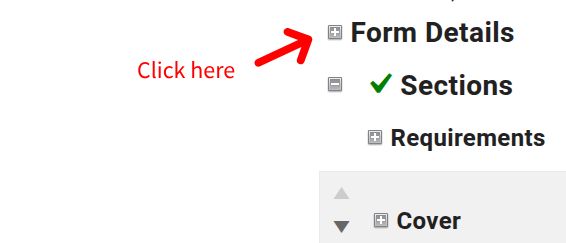
- Click "Form Details" to expand that section.
- Click the "Edit Form Details" button.
- Fill in the information:
- Is Private
- If the proposal form should not be open to the public, then check this box.
- You will have to directly email the link to the interested applicant for them to find and fill it.
- Call For Proposals URL
- The website address for where applicants can find the Call For Proposals and related information.
- Associated Pre-Proposal Form
- If there was a pre-proposal for this proposal form, then click the dropdown to find and select it.
- Is Pre-Proprosal
- If this is a pre-proposal and not a proposal, then check this box.
- Region
- Select the region that this proposal applies to.
- You can only make one selection.
- Project Type
- Select the project type that this proposal is for.
- You can only make one selection.
- Year
- Enter the proposal year.
- Instructions
- Enter any instructions for the applicant to fill out the form.
- Fixed Project Start Date
- Fill this out if all of the projects will start on the same date.
- Do not add a "Project Start Date" question to the form if you enter a "Fixed Project Start Date".
- Fixed Project End Date
- Fill this out if all of the projects will end on the same date.
- Do not add a "Project End Date" question to the form if you enter a "Fixed Project End Date".
- Proposal Open Date
- This is the first date/time that applicants can begin to apply for a grant.
- Proposal Close Date
- This is the last date/time that applicants can submit their proposal.
- Primary review close date
- The last date/time that the reviewers can review the proposals.
- Review max score
- The scale to be used for the calculated review scores.
- Show review deadline to reviewers
- If you want reviewers to see when their reviews are due on their review pages, then check this box.
- General instructions for reviewers
- These instructions will be displayed to the reviewers at the top of each proposal review. It it recommended to keep these brief and to the point.
- Final review max score
- The scale to be used for final reviewers.
- Final review instructions
- Include any instructions for your final reviewer. These will be shown at the top of the final reviewer's review page.
- Text to be appended to submission notification message
- There is an automated email that is sent when a proposal is submitted. This is where you can add additional information to that email.
- Notification template text for approved proposals
- This is a template that can be inserted into the notification message being sent for an approved proposal. You can edit this content before the message is sent.
- Notification template text for requesting proposal resubmission
- This is a template that can be inserted into the notification message being sent for a proposal that is invited to revise/resubmit. You can edit this content before the message is sent.
- Notification template text for rejected proposals
- This is a template that can be inserted into the notification message being sent for a proposal that is not approved. You can edit this content before the message is sent.
- Notification footer/signature
- This the footer that will appear in every email that is sent from the system for proposals submitted to this form.
- Is Private
- Click "Save" when finished.